Showing posts with label technology. Show all posts

Sunday, March 5, 2017

How to Rock Student Portfolios using Class Dojo

Student portfolios are a great way to collect student work and showcase their learning! With how education is changing when it comes to the standards, technology, and engagement, it's important to keep families in the loop of how/what their child is doing in school, and also hold that student accountable for their learning!

Cue- class dojo!


Class Dojo emerged in the education world as a behavior management tool to cultivate a positive behavior environment that motivates students to make good choices and be recognized for their efforts. As a behavior management tool alone, class dojo is an excellent resource! However, over time the website (and app!) has included new features to communicate with parents and involve everyone in the learning process.

Students can earn points for following rules, making good choices, or any other positive behavior!


Class Stories


 Class Stories allow teachers to post updates to send to all parents in the class. You can post text, pictures, videos, and even files to share with families. They can comment, like, and you can see who's viewed it. Parents that have the app on their phone can allow for notifications, so they are updated every time you post! This is a great way to document throughout the year what the class is learning and some of the strategies that are used in the classroom to teach those concepts. I've posted our anchor charts, or videos of the students explaining how they use a strategy. I love this feature for whole group updates.


Student Stories- aka a Digital Student Portfolio


There is also a "student stories" feature, in which the teacher, OR STUDENT (yes I like this part) can post a picture, video, or text. This saves that information just for that student. The teacher, parent, and even the student (if they make their own student login) can view that particular child's "story". As I take pictures during a fun lesson I can post it just on that child's story, or maybe a video of them working out a problem. Class Dojo also provides you with a QR code that will bring you directly to your class, so your students can post themselves! For example, I've printed the QR code and placed it in my classroom where the students can scan it. When my students want to post a picture of their assignment, or their science experiment, or a great grade they just got back, they pick up a tablet, open the class dojo app, scan the code, select their name from the class list, and post! My third graders were able to pick up on the process the first day- it's very easy to follow on the app!

When students post on their story, it will go to the teacher for approval. This means when I log into class dojo, I will have notifications that there are "pending student stories". I get to see it before they post and it sends to their parents.

My students are so motivated to share their best work on class dojo and they love seeing when their parents comment on their post with words of encouragement :) It saves a nice timeline of student work throughout the year! Parents also know exactly what we're learning and how their child is doing with the concept- sometimes we might post something with a mistake. I encourage the student to find their mistake and correct it in the "comments" section of their post. We really hit hard on the growth mindset and how important it is to learn from our mistakes and grow our brain- and the parents love to see when their child is able to learn from their mistakes as well!

Examples


Below are some examples of a student's "story". I love how much this kiddos likes to post and fill his mom in on his day :) He also gives me shout outs, so of course I have to share! Even though I've blurred the name, the first picture would show the student's name, to show that they are the ones posting to the story. The second picture shows my name, so I was the one who posted that picture and comment.


If you haven't jumped on the class dojo bandwagon yet, I highly suggest it. Not only is the behavior management aspect of it pretty great, but the student portfolios are where it's at!

For more information on how class dojo works and to set you up, check out their website and watch their video tutorial here: https://www.classdojo.com/#LearnMore


Rock on,

Diana

Monday, November 14, 2016

Using Google Forms for Grading


Have you seen everyone posting about Google Classroom? I would love to go paperless and have student assignments on google powerpoints or make collaborative projects on google docs but in our classroom we have the Amazon fire tablets which do not work as seamlessly with Google. 

If you're looking to incorporate more technology into your classroom but are on a tight budget, I highly suggest the amazon tablets (aff link). They can get many of the same apps as ipads and are only $50! If you keep an eye on them, they often go on sale in amazon for Black Friday or their Christmas in July for $35- you can't beat that!


So, if you're working with only a few tablets or if you're not ready for the full plunge into google classroom, I have a suggestion to get started and save yourself a lot of time! Using 'google forms" are a quick way to assess students and provide them immediate feedback on their work!


First, you will need a google account and be familiar with google drive


This tutorial isn't really for getting started with google or google drive. If you've saved docs on google drive before but not explored all that it has to offer, then you are right where I was several months ago. Here's how to get started once you're familiar with how google drive works. 

Making Your Google Form


Once in your google drive, you'll want to make a new google form. You may have to click on "more" to find where it says Google Forms.


From there, you will enter your information that you would like to assess. My students complete problems in a text book, so for the title I put the page and numbers they were to do. 


Tips and Tricks for your Google Form


Your first question will need to be where your student puts their name. You'll want to make it short answer, and don't forget to mark it "required"! In fact, I mark all of the questions "required" so that they don't accidentally submit before they've answered all the questions. 

I have found it best to make your answer choices multiple choice. If it's short answer then it won't automatically grade it for you. Now, there is a program out there called "Flubaroo" where it can grade short answer responses.. However, it must match EXACTLY to what you wrote or it will mark it wrong. For this reason, I just make it multiple choice and just let google grade it for me without using the add on for flubaroo.

To make the google form a "quiz" and give it a grade you will click on the "gear" at the top for settings. You'll then have to enter the answer key and the point value for the questions.


As I type this out I feel like it sounds like a million steps. However, once you get the hang of it you can make up a google form very quickly! I've forgotten to make one before and done it while the kiddos were unpacking in the morning. They can get very upset if they can't "scan their answers" :) They love checking their work with google forms!

So how does this work for the students?

This was my first year trying this, so I took a lot of time thinking about how third graders are with technology and troubleshooting some things in advance. For my kiddos it's easier for them to scan QR codes than to type in a URL, so I went ahead and made a QR code that always links to my classroom website. From there, I post the links to the google forms.


I've placed this paper right by their math assignments and the tablet charging area. When they're finished they simply get up to grab a tablet and scan. Due to the high traffic of this area I also put a code on the other side of the room. 


Once they scan the code, it brings them to my classroom website. I use a weebly site for free which was very user friendly to set up. You could make a QR code to go straight to the google form, but I didn't want to keep making codes and printing them out. 


On my weebly site I just linked the google form with the button for the day of the week. We submit answers on google forms almost everyday, so this helps keep it organized and to make sure they click on the right form. You could always just make it one link on the page so it's easy peasy to get to!

Once they click on the correct google form, this is what they see!


You could type the actual problem in for the question, but to save time I just put the question number and the answers. 

Once they submit they see this screen below. They can then click to view their score if you made this option available when you made the quiz. I highly suggest you let them view their score and which questions they missed. It's perfect for immediate feedback and I encourage students to see why they might have missed a question. 


Here's what it looks like when they click to view their score. The points show at the top and it shows what questions they missed in red. 


Now for the fun part- what you can see once your students submit their answers!

The grading is done for you!


I made a folder in my google drive just for their submitted math assignments. You can also change colors of folders so I've made it red to pop out- it's my most used folder in google drive!


When you click on your google form you can view responses and see overall how the class did, and also for individual students. 


You can also view your responses in a spreadsheet. I like to see all of the names at once verses clicking through each individual response on the google form page. The C column shows the name but I made it smaller to protect the privacy of my students. 


This spreadsheet is great to have, or print to view who needs reteaching, like my kiddo who got a 40 I need to address right away and review the patterns of multiplying by 9.

I have also put their scores on a checklist like this. This helps me view who did not submit their work and I also highlight the concerning scores so I can see any patterns of students who are consistently having trouble.


Google forms for the win!


I'd say google forms has really helped hold my students accountable and help me be a better teacher by addressing misconceptions and concerns even more quickly. I'm guilty from years past of not checking student daily work until a few days later.. what good does that do if they had been struggling? They may rock it in small group but struggle when they work independently and with google forms it helps you recognize right away who needs help. The students also know that they're work is being looked at daily.. They can't just blow it off because I will know right away! 

I hope you check out google forms and that it saves you some time and helps your students with that feedback! It's been a game changer this year!

Rock on, 

Diana


Friday, September 23, 2016

Five for Friday


Hey there,

I'm linking up with Doodle Bugs Teaching for five for Friday! It was a fun week and we've stayed busy. Here's what we've been up to...


Talk like a Pirate Day was Monday! Arggggg!!

We learned about rounding by walking the plank and searching for treasure!


I blogged all about what we did as pirates on Monday here: http://dianarowland.blogspot.com/2016/09/talk-like-pirate-day-arggg.html


Here's some of the pirate rounding activities we did on TPT- https://www.teacherspayteachers.com/Product/Pirate-Rounding-2789718#


We've started our states of matter unit this week. I love using Hope King's unit that you can check out here- https://www.teacherspayteachers.com/Product/As-a-Matter-of-Fact-A-Matter-Study-Including-11-Lessons-Engaging-Experiments-641340


This adorable lesson shows the molecules for each of the states of matter. They love jumping around like crazy kids to show how the molecules move!


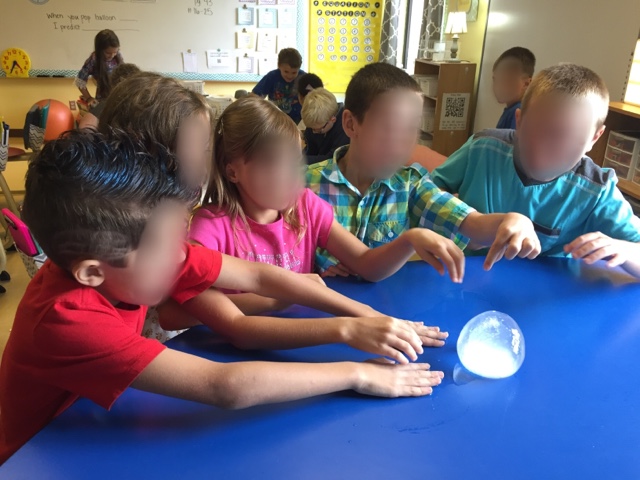
This activity is the balloon poke, where 3 balloons are set up. One has air, the other water, and the last one is ice. The kids describe what each balloon feels like and then we pop them! They're always so amazed by the ice balloon!


My LOL for the week!


Outside my classroom I have a white board that I've been using for math jokes. I'm not sure if it's more for my enjoyment or the kids haha! I'm on the lookout for more math jokes if you know any!


MY NEW FAVORITE APP OF ALL TIME!
Classkick is this great app where students can solve problems on a tablet and I can view all of their screens on my ipad! They can virtually "raise their hand" for me to check, or to ask a question. I can check their work and leave little stickers or notes. My kiddos LOVE it! They love seeing that I've checked it.


They asked me "is it rite?" and so I gave them the check, I usually leave an apple sticker too.


I could also catch any mistakes, like these kiddos rounding to the nearest 10 instead of 100.

Right now I have enough devices to let them work in pairs (I'm blessed to have 12 tablets!). This would be even better if I had 1:1


Farm update!

I want an alpaca so bad... just have to throw that out there.


Guess who's looking at alpaca.. ME!


That's all folks! Rock on,

Diana


Thursday, March 10, 2016

Tablets for more than games


This year we've been super lucky to get 9 tablets for our classroom thanks to the love and support of family, friends, and our PTO! With these many tablets I can have a center designated to technology but also do whole group activities with 2-3 kiddos per tablet. With this amazing opportunity, I really spent a lot of time figuring ways to incorporate technology that isn't just playing a game.

Now don't get me wrong, we love a good game of Sushi Monster to practice multiplication, or Math Zombies where fluency and speed is the trick. However, I really felt to make these tablets worth it we needed to use them in ways that enhance their learning and they are a tool. Here's some tried and true apps and uses for tablets in your math classroom!


1. Seesaw

Seesaw is a neat app that's sort of like Facebook for the classroom. You log in by scanning a QR code particular to your class, where you've put all of your students names. They can upload a picture, drawing, or write a note and post it. Then they are able to comment on other's work and ask questions. The great thing about seesaw is you must approve the posts and comments first, so you can make sure everything looks ok and the kiddos are being nice :) I love this for grading from home right off my computer or phone! I also leave comments and ask questions on their posts, which they think is super cool ha!

2. Tellagami


Tellagami is an app where you can record your voice and an animated character says them and has hand gestures. You can choose different emotions for them to use while they speak, so their facial expressions are different. If you have the free version they can record for 30 seconds, so it's sweet and to the point. We love this for explaining math vocabulary or explaining how to solve a problem. It helps children be more concise with the time limit, but they usually don't only say a few words as it's a lot of fun for them to hear their voices. You're able to save the videos on the device but can also post them to twitter! That brings me to my next technology tool...

3. Twitter

Twitter has been great for our classroom. I use a classroom Twitter account and only follow fellow teachers. My students like to tweet because our Twitter feed is on my classroom website, so they can go home and show their parents. We tweet about what we're learning and snap a few pictures. We've also had fun with hashtags- which are perfect to sum up their learning or get the main idea. Many of the other apps we use like tellagami, poppet, and pic collage (we'll get to those two later) allow you to save to your camera roll and tweet, which is great for sharing student creations! Students are much more likely to do their best work if they know everyone on Twitter can see it! :)

4. Show Me


ShowMe is an app only available for iPads, although there's other versions of this app out there. ShowMe is an interactive whiteboard that records your voice and you draw and write. I introduced this app in small groups in about 5 minutes and the kids picked right up on it. We love this for "teaching". I've told my students that the best way to see if they understand something is if they can teach it, or explain it to somebody else. So, we use this app to make a video teaching a concept! We then use those videos as a recap at the end of a lesson or to review. To save videos you'll need to make a free account.

5. PicCollage


Pic collage is so fun! This is the perfect app for those visual learners. The name of the app is pretty self explanatory.. You can make a collage of pictures :) We love this app when we do scavenger hunts of real life math examples. You could make a collage of cylinders or other 3D shapes, or a collage of arrays. You can also add text so you can label pictures or add comments. These collages can be saved as a picture so you can tweet it too!

6. Popplet


Poppet is an excellent app, I just hate it's only available for iPads. Poppet lite is the free version and it's worked just fine for our purposes. This app allows you to make bubble maps with as many bubbles as you'd like. Inside those bubbles you can add text, pictures, links, or drawings. We love poppet for math vocabulary, but really any topic you'd like your students to organize in some fashion poppet is the way to go. 


Overal, what I love about these apps are the creative outlet children have while making something or writing something- it's not just plugging in an answer. Your students will use higher order thinking while they make visuals, flow maps, explain their thinking, and show examples. You can't beat it folks!

To help me keep on track and using technology regularly during the week, I've made these center assignments for their "math technology" center. My students go to their center, read the directions, can see the picture of the app so they know what to click on, and follow the rubric to explain a vocab word or math problem. They're open ended so I can use them over and over with different math topics! Check them out here!

Check out the technology centers here!!


Please share some of your favorite apps! I'm always looking for new things to introduce to my kiddos :)

Rock on,

Diana